> ## Documentation Index
> Fetch the complete documentation index at: https://docs.wji.ai/llms.txt
> Use this file to discover all available pages before exploring further.
# Create a workspace
> Name your workspace, pick a primary image generation mode, and set defaults.
Open **Workspace** in the top navigation and click **Create workspace**.
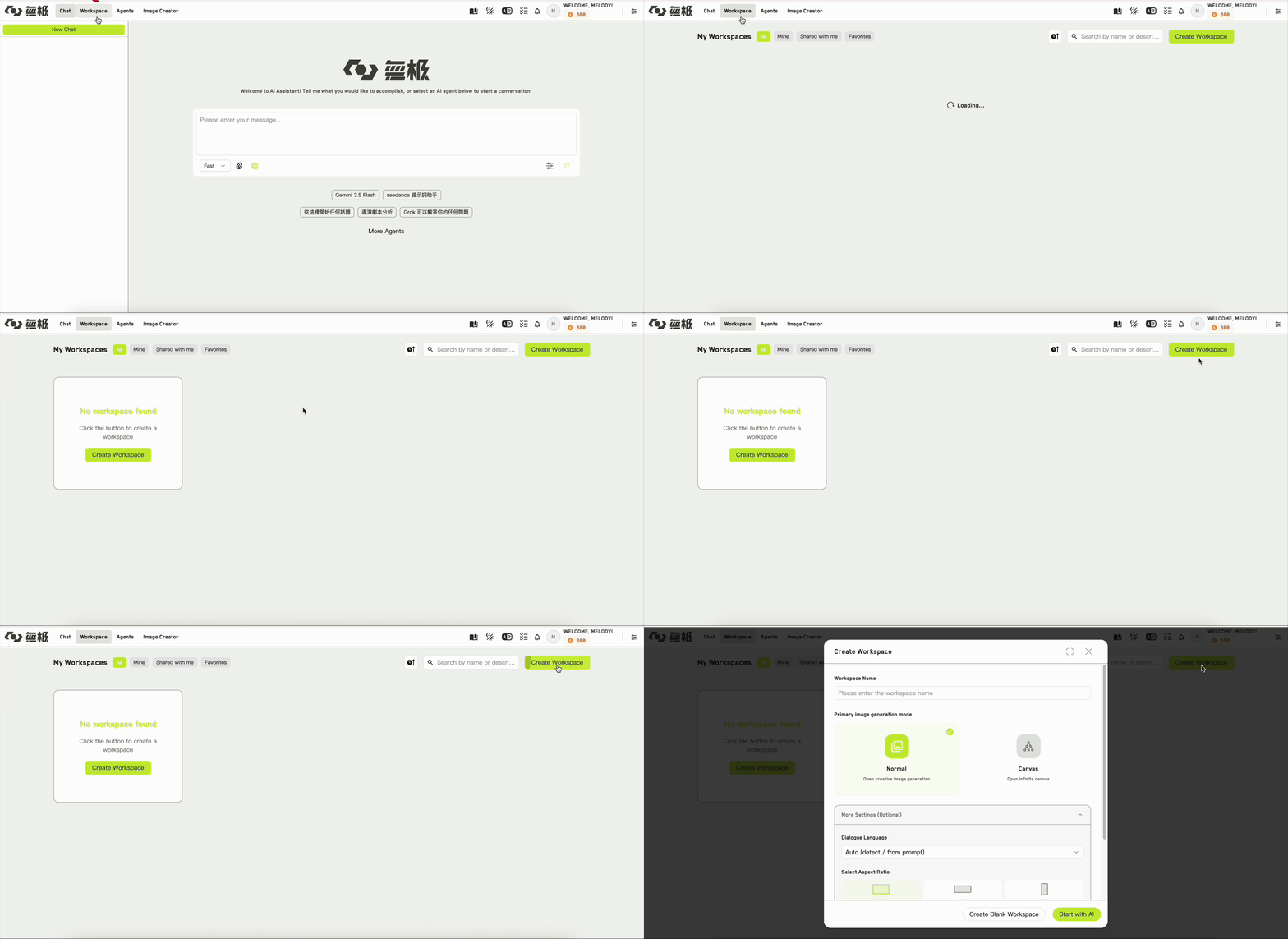 ## Workspace name
The only required field. You can change it later in settings.
## Primary image generation mode
This is the choice worth thinking about. It sets which app the workspace opens into.
The workspace opens in **Idea Studio**. Use this when you want to write first — build up characters, locations, and shots, then generate images from them.
The workspace opens on the **Infinite Canvas**. Use this when you want to work visually, wiring references together on a board.
You are not locked in. All three apps are always available in the left panel; this setting only decides where you land.
## More settings
These are optional, and each has a sensible default. All of them can be changed later.
| Setting | What it does |
| ----------------------- | ------------------------------------------------------------------- |
| **Dialogue language** | The language AI uses for generated dialogue. Defaults to automatic. |
| **Aspect ratio** | The default frame shape for this workspace: 16:9, 21:9, or 9:16. |
| **Default image model** | Preselected whenever you generate an image. |
| **Default video model** | Preselected whenever you generate video. |
If you are working inside an organization, you will also see a **billing mode** choice that decides whose credits this workspace spends. See [Roles and permissions](/organizations/roles-and-permissions).
## Two ways to finish
Creates the workspace and immediately opens the **Build with AI** wizard in Idea Studio, so you can turn an outline or a premise into a full set of ideas straight away.
Creates the workspace and drops you into it empty, ready for you to add ideas yourself.
WJI does not offer a choice of workspace template. Every new workspace is created with the same set of apps regardless of how you finish this dialog.
## Workspace name
The only required field. You can change it later in settings.
## Primary image generation mode
This is the choice worth thinking about. It sets which app the workspace opens into.
The workspace opens in **Idea Studio**. Use this when you want to write first — build up characters, locations, and shots, then generate images from them.
The workspace opens on the **Infinite Canvas**. Use this when you want to work visually, wiring references together on a board.
You are not locked in. All three apps are always available in the left panel; this setting only decides where you land.
## More settings
These are optional, and each has a sensible default. All of them can be changed later.
| Setting | What it does |
| ----------------------- | ------------------------------------------------------------------- |
| **Dialogue language** | The language AI uses for generated dialogue. Defaults to automatic. |
| **Aspect ratio** | The default frame shape for this workspace: 16:9, 21:9, or 9:16. |
| **Default image model** | Preselected whenever you generate an image. |
| **Default video model** | Preselected whenever you generate video. |
If you are working inside an organization, you will also see a **billing mode** choice that decides whose credits this workspace spends. See [Roles and permissions](/organizations/roles-and-permissions).
## Two ways to finish
Creates the workspace and immediately opens the **Build with AI** wizard in Idea Studio, so you can turn an outline or a premise into a full set of ideas straight away.
Creates the workspace and drops you into it empty, ready for you to add ideas yourself.
WJI does not offer a choice of workspace template. Every new workspace is created with the same set of apps regardless of how you finish this dialog.