> ## Documentation Index
> Fetch the complete documentation index at: https://docs.wji.ai/llms.txt
> Use this file to discover all available pages before exploring further.
# Workspace settings
> Basic details, app management, resource access, spending limits, key-values, prompt presets, and usage stats.
Open settings with the gear icon in the left panel. The dialog has eight tabs down its left side.
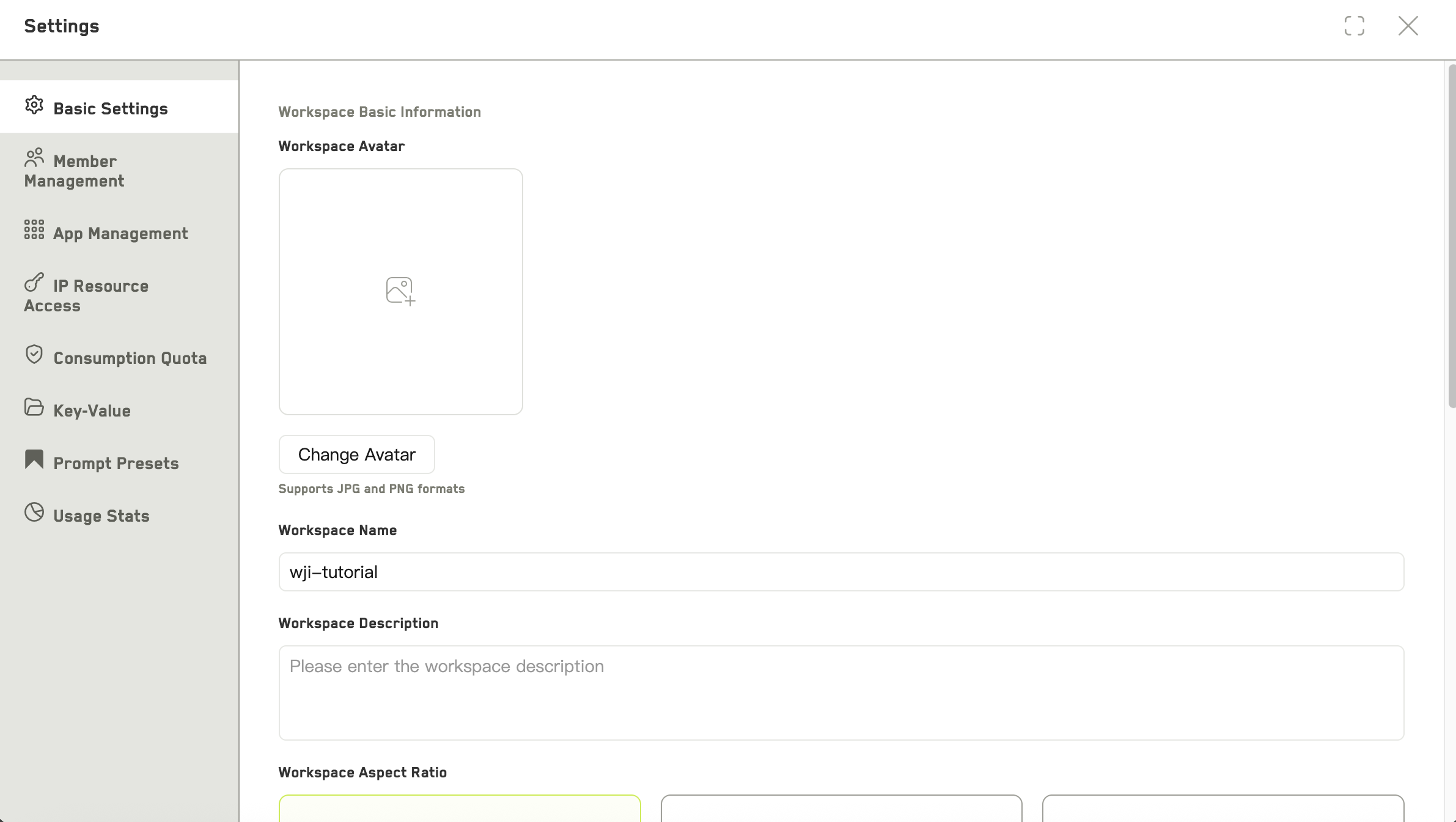 ## Basic settings
Everyone in the workspace can open this tab.
* **Avatar** — upload a JPG or PNG cover image
* **Name** and **description**
* **Aspect ratio** — 16:9, 21:9, or 9:16
* **Dialogue language**
* **Default app** — which app the workspace opens into
* **Default image, video, and storyboard models**
At the bottom sits a **danger zone** with **Delete workspace**. Deletion asks for confirmation and cannot be undone.
## App management
## Basic settings
Everyone in the workspace can open this tab.
* **Avatar** — upload a JPG or PNG cover image
* **Name** and **description**
* **Aspect ratio** — 16:9, 21:9, or 9:16
* **Dialogue language**
* **Default app** — which app the workspace opens into
* **Default image, video, and storyboard models**
At the bottom sits a **danger zone** with **Delete workspace**. Deletion asks for confirmation and cannot be undone.
## App management
 Requires permission to manage the workspace.
Lists the apps currently on this workspace, and lets you add or remove them. Only two apps can be added: **Infinite Canvas** and **Digital Host**. You can give each a custom name and description.
Removing an app hides it from the left panel. The content it holds is not deleted.
## Members
Add people, change roles, transfer ownership, and manage the invite link. See [Members and permissions](/workspaces/members-and-permissions).
## Resource access
Two tabs — **Marketplace** and **Granted** — for requesting access to shared asset libraries. You can include a reason with a request. Each request shows as pending, approved, rejected, or cancelled.
## Spending limit
Requires permission to manage the workspace.
Set a **total spending cap** and a **monthly cap** in credits for this workspace. Useful when you want a project to stay inside a budget without watching it constantly.
## Key-value
A small store of key-value pairs scoped to this workspace. Add, edit, and delete entries. AI can reference these values, which makes it a convenient place for facts you repeat often — a series name, a fixed set of terminology, a client's requirements.
## Prompt presets
Prompt presets saved for this workspace. You can add one, **import presets** from elsewhere, search by keyword, and clear the filter. Presets saved here are available to everyone in the workspace.
## Usage stats
* **Storage** — total size and number of assets
* **Consumption** — credits, tokens, and call counts
* **By member** — who spent what
* **By model** — which models the spend went to
Requires permission to manage the workspace.
Lists the apps currently on this workspace, and lets you add or remove them. Only two apps can be added: **Infinite Canvas** and **Digital Host**. You can give each a custom name and description.
Removing an app hides it from the left panel. The content it holds is not deleted.
## Members
Add people, change roles, transfer ownership, and manage the invite link. See [Members and permissions](/workspaces/members-and-permissions).
## Resource access
Two tabs — **Marketplace** and **Granted** — for requesting access to shared asset libraries. You can include a reason with a request. Each request shows as pending, approved, rejected, or cancelled.
## Spending limit
Requires permission to manage the workspace.
Set a **total spending cap** and a **monthly cap** in credits for this workspace. Useful when you want a project to stay inside a budget without watching it constantly.
## Key-value
A small store of key-value pairs scoped to this workspace. Add, edit, and delete entries. AI can reference these values, which makes it a convenient place for facts you repeat often — a series name, a fixed set of terminology, a client's requirements.
## Prompt presets
Prompt presets saved for this workspace. You can add one, **import presets** from elsewhere, search by keyword, and clear the filter. Presets saved here are available to everyone in the workspace.
## Usage stats
* **Storage** — total size and number of assets
* **Consumption** — credits, tokens, and call counts
* **By member** — who spent what
* **By model** — which models the spend went to